---
title: "Using Private RSVP Form Links"
url: "https://help.checkinpax.com/en/article/using-private-rsvp-form-links"
language: "en"
last_updated: "2026-09-13T08:56:50.918Z"
---
# Using Private RSVP Form Links
Private RSVP forms are designed for invitation-only events. Unlike public forms (where anyone with the link can submit a response), private forms only allow access to guests who are already on your guest list.
* * *
### How private forms work
When you create a private RSVP form, each guest receives a **unique, personalized link**. When they click that link, the form is pre-filled with their information – they simply confirm or decline. No need to type their name or email.
**The guest experience:**
1. Guest receives their unique link
2. Clicks the link
3. Sees a form with their name already filled in
4. Clicks "Confirm" or "Decline"
5. Done
* * *
### How to create a private form
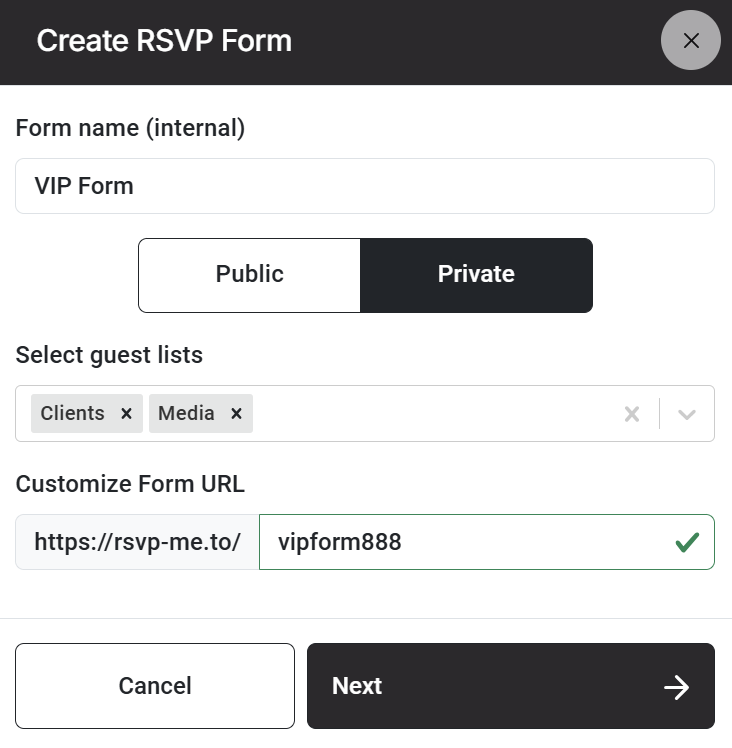
1. Go to **Manage Templates** → **RSVP Forms**.
2. Click **Create New Form**.
3. Enter a **Form Name**.
4. Select **Private** as the access type.
5. Choose one or more **Guest Lists** that the form is linked to.
6. - Only guests in these lists can access the form
- Each guest gets their own unique link
7. Click **Create**.
Your private form is now ready. Each guest in the selected list will automatically have a unique link.
* * *
### How to get the unique links
There are two ways to send private form links to your guests:
| Method | How it works | Best for |
| --- | --- | --- |
| **Email templates** | Add the form link followed by a "/" and the Guest Id placeholder `[Guest](Guest ID)` to your email template. When sent, each guest receives their own unique link.
**A sample form link looks like this:**
[`https://rsvp-me.to/your-form-slug/r6jtr35`](https://rsvp-me.to/your-form-slug/r6jtr35)
- [`https://rsvp-me.to/`](https://rsvp-me.to/) = the domain (does not change)
- `your-form-slug/` = the URL extension you added in the form settings
- `r6jtr35` = the guest's unique system ID | Sending invitations or reminders |
| **Manual copy** | On top of the form designer, click on the RSVP LINKS button. You can now download the full guest list including the personal link of each guest. | Small events or last-minute requests |
#### Using the rsvp-me.to/your-form-slug/`[Guest](Guest ID)` placeholder
In your email template, add:
rsvp-me.to/your-form-slug/`[Guest](Guest ID)`
When the email is sent, placeholder will be replaced with the guest's unique private form link.
**Example email body:**
> Dear \[Guest\](First Name),
>
> Please confirm your attendance for the upcoming conference:
>
> #### rsvp-me.to/your-form-slug/`[Guest](Guest ID)`
>
>
> We look forward to seeing you there.
**Tip: You can also add this link behind a RSVP button.**
* * *
### What guests see
When a guest clicks their unique link, they see a form with their information already pre-filled. This typically includes:
- First name
- Last name
- Email address
- Any other custom fields you added to the form
The guest only needs to click **Confirm or Submit**. They can also update their information if you allow editing.
* * *
### Security & access
| Question | Answer |
| --- | --- |
| Can a guest share their link? | Yes, but the link is tied to their specific guest profile. If someone else uses the link, they will see the original guest's information. |
| Can a guest submit the form multiple times? | Yes. This lets a guest update their details if they click the RSVP button again.
Tip: To prevent guests from changing their responses, you can move confirmed guests to a different guest list. This will also revoke their access to the form. |
| Can someone guess a private link? | Extremely unlikely. Each link contains a unique, randomly generated token, the Guest ID. |
| What happens if a guest is not on the guest list? | They will see an "Invitation only" and "No access" screen. |
* * *
### Updating a private form after sharing links
You can update the design or settings of a private form at any time. The unique links remain the same – guests will see the updated form when they click their link.
**What you should not change after sharing links:**
- The **Guest List** the form is linked to in the form settings (would revoke access for all guests in the originally associated guest list)
- The **form URL slug** (would break the already sent RSVP links)
- **Moving guests to another guest list.** This will also revoke their access to that form.
> **Note:** If you need to change the linked guest list or want to upload a new, separate list, create a new private form (or copy it) and send new links. 1 Guest list - 1 RSVP form.
* * *
### Pro tips
- **Always test first.** Send a test email to yourself or a test guest to verify the link works.
- **Use private forms for VIP events.** It adds a layer of exclusivity and security.
- **Combine with automation.** Set up an automated confirmation email to send immediately after a guest submits the form.
- **Do not share the form URL publicly.** Private form links are meant for individual guests. Sharing the generic form URL will not work.
* * *
## Related Articles
- Creating RSVP forms
- Configuring RSVP Form Settings
- Using the RSVP Form Designer
- Combining invitation emails with personalized RSVP forms