
Adding QR Codes to Emails
QR codes are the fastest way for guests to check in at your event. Instead of searching for their name or waiting for a staff member to find them in the guest list, guests simply open their email, show their unique QR code, and get scanned in seconds.
Check-in Pax automatically generates a QR code for every guest. When you add the QR code placeholder to your email template, each recipient receives their own personalized QR code — no manual work required.
How it works
- You add the QR code placeholder e.g.
[QR](Email)to your email template. - When you send the email to your guest list, Check-in Pax automatically generates a unique QR code for each guest. In this case, using the guests email address.
- The QR code appears as an image directly inside the email.
- Guests show this code on their phone at the event entrance.
- Your team scans the code using the Check-in App, and the guest is checked in instantly.
Adding a QR code to your email template
- Open your email template in the Email Designer.
- Click on the location where you want the QR code to appear (e.g., near the bottom of the email, or inside a dedicated box).
- Type the QR code placeholder exactly as shown:
text[QR](Email) - The placeholder will display as a QR code image preview in the designer.
- Adjust the size and alignment as needed (the QR code should be large enough to scan easily).
- Save your template.
That's it. Check-in Pax handles the rest.
Pro tip: Click on View Placeholders at the top of the Email Designer, then select the QR code tab (the middle tab). This will display all default and custom fields and the required placeholder.
Which field should you use?
The QR code placeholder uses a field value to generate the code. By default, we recommend using [QR](Email) because email addresses are usually unique to each guest.
However, you can use any field as the QR code value:
| Field | Placeholder | When to use |
|---|---|---|
Email (recommended) |
| Most events – emails are unique and easy to remember |
Guest ID (recommended) |
| When you prefer using system-generated unique IDs |
Custom field (e.g., Ticket Number) |
| When you have your own unique identifiers from an external system |
Note: Check-in Pax allows you to use any default or custom field for QR code generation, including your own external IDs. Just make sure the values are unique per guest to avoid conflicts.
What guests see
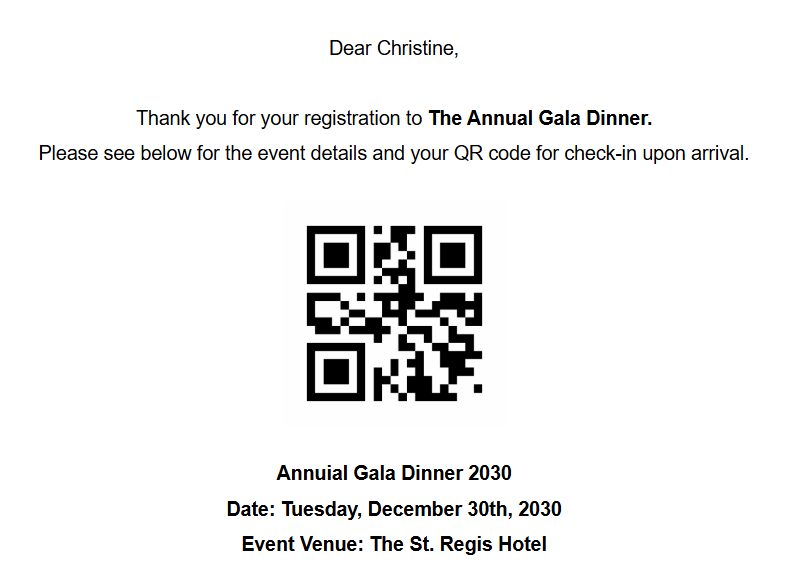
When a guest receives your email, they will see a QR code image directly in their email - no attachments or link needed. The QR code will appear in your email like this:
As shown above, the QR code is placed below the event details and is unique to each guest.. No two guests will ever receive the same QR code (unless you intentionally use a non-unique field).
Testing QR codes before sending
Always test that QR codes are working correctly before sending to your full guest list.
- Create a test guest in your guest list (use your own email address).
- Send a test email to yourself using the Send Test button.
- Open the email on your phone.
- Open the Check-in App and scan the QR code from your phone screen.
- Verify that the correct guest profile appears or that the guest is checked in (depending on your scan mode).
Pro tip: Test the QR code under different lighting conditions and screen brightness levels to ensure it scans reliably.
Common issues and solutions
| Issue | Likely cause | Solution |
|---|---|---|
QR code does not appear in the email | Wrong placeholder format | Use exactly |
QR code appears but does not scan | QR code is too small | Increase the size of the QR code image in your design |
QR code shows the same guest for everyone | Field value is not unique | Switch to a unique field like Email or Guest ID |
QR code is blurry | Low resolution | Make sure you are not resizing the image too large (start with the size Check-in Pax generates) |
Best practices for QR codes in emails
| Recommendation | Why |
|---|---|
Make the QR code at least 150 x 150 pixels | Ensures easy scanning |
Leave white space around the QR code | Improves scanner detection |
Place the QR code near the top of the email | Guests don't have to scroll to find it |
Add a short instruction above the QR code | Example: "Show this code at the entrance for fast check-in" |
Example instruction text:
Your QR code is below. Please have it ready when you arrive at the event for quick check-in.
How QR codes help your event
- Speed: Scanning a QR code takes 1–2 seconds. Typing a name takes 10–15 seconds.
- Accuracy: No typos, no misspelled names, no wrong guests.
- Contactless: Guests don't need to hand over their phone or touch shared devices.
- Tracking: Every scan is recorded with a timestamp and device name.
Related Articles
- Adding guest placeholders
- Using the Email designer
- Scanning QR codes in the Check-in App
- Testing emails and viewing as guest
- Creating new email templates