
Checking Email Analytics
After you send emails to your guests, you need to know what happened. Did guests open the email? Did they click the RSVP link? Did the email bounce back because the address was wrong?
Email analytics gives you answers to these questions. With this data, you can understand guest engagement, identify delivery issues, and improve your communication for future events.
Where to find email analytics
- Go to Manage Templates → Emails.
- Find the email template you want to analyze.
- Click on the Analytics button.
Email statuses explained
Each email sent to a guest has a status. Understanding these statuses helps you diagnose delivery issues and clean up your guest list.
| Status | Meaning | What you should do |
|---|---|---|
Pending | The email is in the queue waiting to be sent | Wait a few minutes, then refresh |
Request | The email has been requested but not yet processed | No action needed |
Delivered | The email successfully reached the recipient's inbox | Nothing – this is the goal |
Opened | The recipient opened the email | Track this for engagement metrics |
Clicked | The recipient clicked a link in the email | Track this for engagement metrics |
Invalid Email | The email address format is incorrect (e.g., missing @) | Correct the email address or remove the guest |
Missing Email | No email address was provided for this guest | Add an email address or exclude from email sends |
Soft Bounce | Temporary delivery failure (e.g., inbox full, server down) | The system will retry automatically |
Hard Bounce | Permanent delivery failure (e.g., email address does not exist) | Remove or correct the email address |
Error | A technical error occurred during sending | Contact support if the issue persists |
Deferred | The sending server delayed delivery (often due to high volume) | No action needed – the system will retry |
Spam | The email was marked as spam by the recipient or their provider | Review your content and sender reputation |
Unsubscribed | The recipient opted out of receiving future emails | Do not send to this guest again |
Blocked | The email was blocked by the recipient's email provider | Check your sender domain verification |
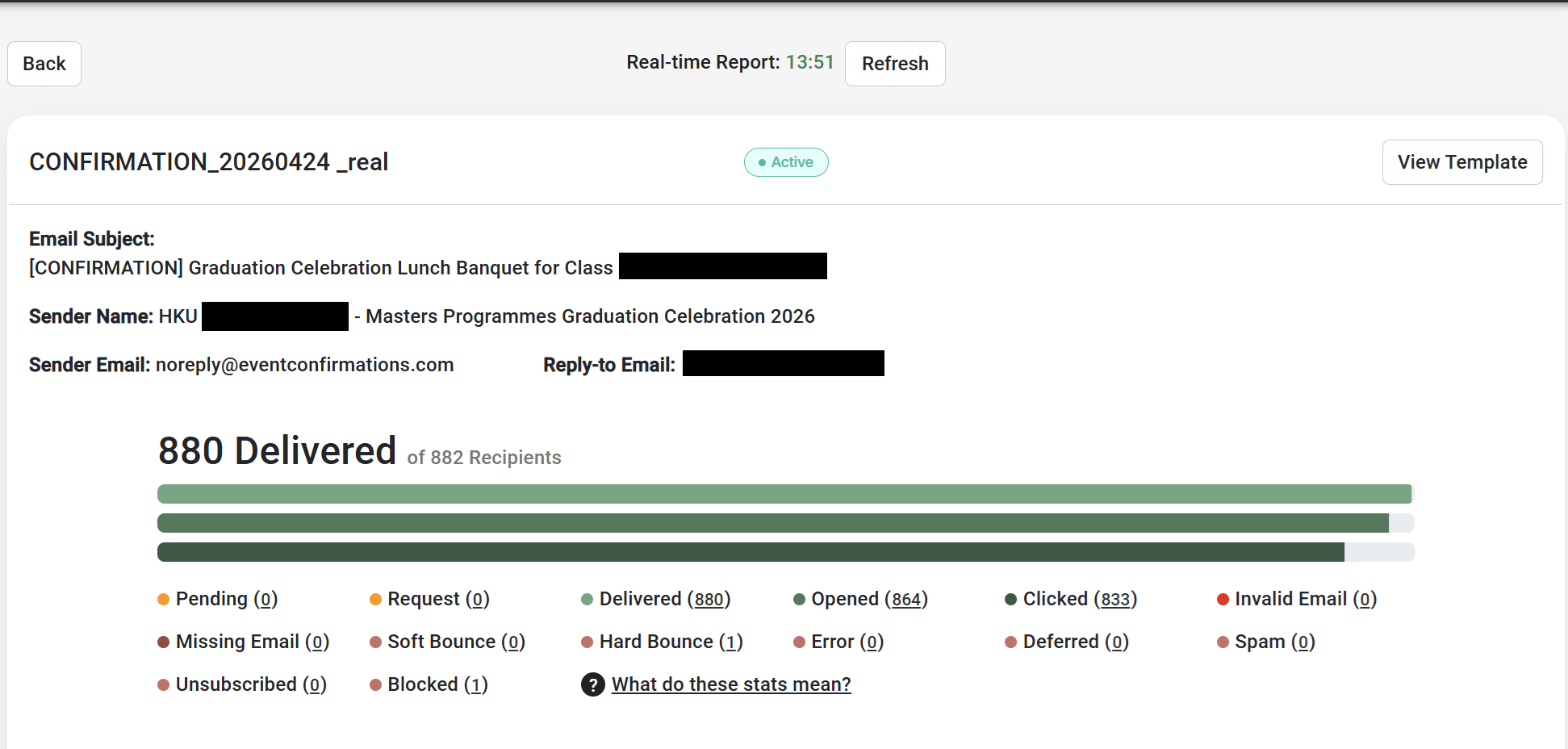
Sample Analytics Screen
This screenshot shows a typical analytics screen of a campaign sent to 800+ guests with a very high open and click rate and only 1 hard bounce detected:
Filtering and finding issues
Below the email statistics, you will find a filter that allows you to sort by status. This helps you quickly identify which guests experienced delivery issues.
For example, you can filter to show only guests with Hard Bounce or Invalid Email to see exactly who needs attention.
Resending emails
If a guest did not receive your email, you have two ways to resend it:
Method 1: Resend directly from analytics
- Go to the email analytics page.
- Find the guest who needs a resend.
- Click the Resend button next to their record.
- Confirm the resend.
Method 2: Resend from the guest list
- Go to your event's Guest List page.
- Find the guest who needs a resend.
- Open their guest profile.
- Click the Send Email button and choose the template.
- Send the email.
Pro tip: If the guest's email address was incorrect, fix it in their profile first, then resend.
Downloading an email report
You can download a complete email report as an Excel file. This report includes your full guest list along with the email status for each guest.
How to download the report
- Go to the email analytics page.
- Click the Download Report button to download the email report as an excel file.
- The file will download automatically.
What the report includes: Guest name, email address, guest data fields, email status, and timestamps for opens and clicks called last activity and the email as a link.
Sending an email as a link
Sometimes a guest's email client has issues receiving emails. Maybe it went to spam, or their server is blocking messages. In these cases, you can send the email as a direct link.
Below the statistics, next to each guest, you will find an email as link button. This generates a unique URL that displays the exact email content in a web browser.
How to use the email link
- Go to the email analytics page.
- Find the guest who needs the link.
- Click the email as link button (usually a chain or link icon).
- Copy the generated URL.
- Send the link to the guest via WhatsApp, Messenger, SMS, or any other channel.
Why this is useful: The guest can open the link in their browser and access their QR code immediately, even if their email client is not working properly. This is usually the most convenient way to get a guest their QR code and solve the issue quickly.
Status categories
| Category | Statuses included | What it means |
|---|---|---|
Success | Delivered, Opened, Clicked | The email was received and engaged with |
Temporary issues | Pending, Request, Soft Bounce, Deferred | The system will retry automatically |
Permanent failures | Hard Bounce, Invalid Email, Missing Email | Action required from you |
Rejected | Spam, Unsubscribed, Blocked | The email was not wanted or allowed |
System errors | Error | Contact support if persistent |
Understanding delivery issues
Soft Bounce vs. Hard Bounce
| Type | Meaning | Example | Retry? |
|---|---|---|---|
Soft Bounce | Temporary issue | Inbox full, out of office auto-responder | Yes, system retries automatically |
Hard Bounce | Permanent issue | Email address doesn't exist, domain invalid | No, address is marked as invalid |
Invalid Email vs. Missing Email
| Status | Meaning | Solution |
|---|---|---|
Invalid Email | Email address format is wrong (e.g., "john@.com") | Correct the email address format |
Missing Email | No email address in the guest's profile | Add an email address to the guest record |
Spam, Blocked, and Unsubscribed
| Status | Meaning | Prevention |
|---|---|---|
Spam | Recipient or provider marked email as spam | Use verified sender domain, avoid spammy language |
Blocked | Provider rejected the email | Check your sender reputation and domain verification |
Unsubscribed | Guest opted out of future emails | Respect this – do not send again |
What to do with problem statuses
After your send, use the filter to identify guests with issues:
- Go to the email analytics page.
- Use the filter by status dropdown to select, for example, "Hard Bounce."
- Review the list of affected guests.
- Take action:
| Status | Action |
|---|---|
Hard Bounce | Correct the email address or remove the guest |
Invalid Email | Fix the email address format |
Missing Email | Add an email address to the guest profile |
Unsubscribed | Do not send future emails to this guest |
Spam / Blocked | Review your sender domain and email content |
To fix an email address, go to your Guest List, find the guest, edit their profile, and then resend the template from there.
Example analytics dashboard
After sending an invitation to 1,000 guests, you might see:
| Status | Count | What it means |
|---|---|---|
Delivered | 850 | Successfully delivered |
Opened | 420 | 42% of delivered were opened |
Clicked | 120 | 12% of delivered clicked a link |
Hard Bounce | 30 | 30 invalid or non-existent addresses |
Soft Bounce | 15 | 15 temporary failures (system will retry) |
Invalid Email | 5 | 5 addresses with formatting errors |
Missing Email | 0 | All guests have email addresses |
Spam | 2 | 2 recipients marked as spam |
Unsubscribed | 3 | 3 guests opted out |
Conclusion: 50 addresses need attention (30 Hard Bounce + 5 Invalid Email + 15 Soft Bounce to monitor). Clean up these addresses before your next send.
Pro tips
- Check analytics after every send. Do not wait until after the event. If bounce rates are high, you can still clean your guest list.
- Use the status filter. This is the fastest way to find guests with delivery issues.
- Download the Excel report. Keep a record of email performance for post-event reporting.
- Use the email link for problem guests. If someone claims they didn't receive the email, send them the direct link via messenger or SMS. This solves most issues instantly.
- Clean your guest list regularly. Remove or correct addresses with Hard Bounce, Invalid Email, or Spam statuses.
- Respect unsubscribes. Do not send again to guests who have unsubscribed. Check-in Pax will block these automatically.
- Monitor spam complaints. If you see Spam statuses, review your email content and sending frequency.
- Use a verified sender domain. This reduces the chance of Blocked and Spam statuses.
Related Articles
- Activating, sending, and scheduling emails
- Testing emails and viewing as guest
- Resending emails to single guests
- Using your own email sender domain