
Using Private RSVP Form Links
Private RSVP forms are designed for invitation-only events. Unlike public forms (where anyone with the link can submit a response), private forms only allow access to guests who are already on your guest list.
How private forms work
When you create a private RSVP form, each guest receives a unique, personalized link. When they click that link, the form is pre-filled with their information – they simply confirm or decline. No need to type their name or email.
The guest experience:
- Guest receives their unique link
- Clicks the link
- Sees a form with their name already filled in
- Clicks "Confirm" or "Decline"
- Done
How to create a private form
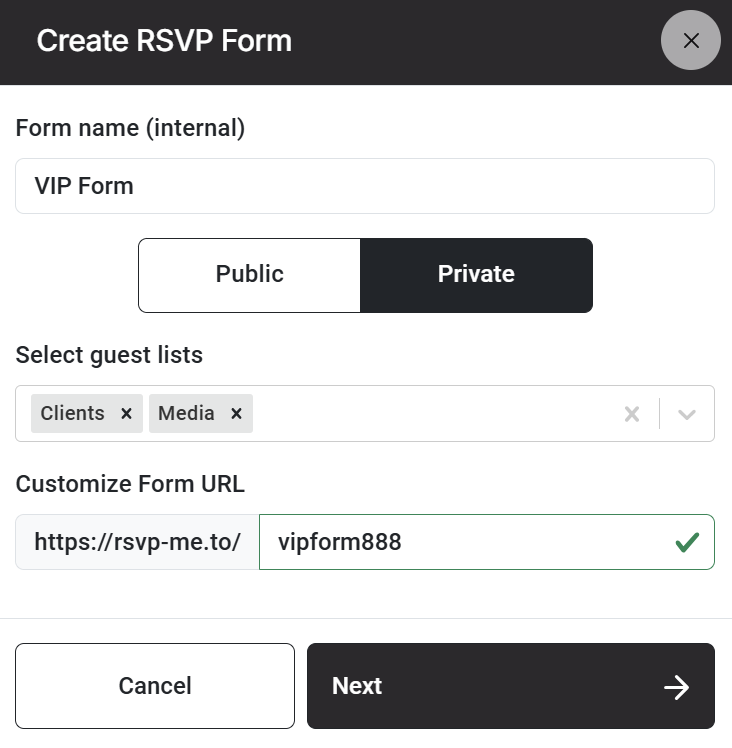
- Go to Manage Templates → RSVP Forms.
- Click Create New Form.
- Enter a Form Name.
- Select Private as the access type.
- Choose one or more Guest Lists that the form is linked to.
- Only guests in these lists can access the form
- Each guest gets their own unique link
- Click Create.
Your private form is now ready. Each guest in the selected list will automatically have a unique link.
How to get the unique links
There are two ways to send private form links to your guests:
| Method | How it works | Best for |
|---|---|---|
Email templates | Add the form link followed by a "/" and the Guest Id placeholder
| Sending invitations or reminders |
Manual copy | On top of the form designer, click on the RSVP LINKS button. You can now download the full guest list including the personal link of each guest. | Small events or last-minute requests |
Using the rsvp-me.to/your-form-slug/[Guest](Guest ID) placeholder
In your email template, add:
rsvp-me.to/your-form-slug/[Guest](Guest ID)When the email is sent, placeholder will be replaced with the guest's unique private form link.
Example email body:
Dear [Guest](First Name),
Please confirm your attendance for the upcoming conference:
rsvp-me.to/your-form-slug/
[Guest](Guest ID)
We look forward to seeing you there.
Tip: You can also add this link behind a RSVP button.
What guests see
When a guest clicks their unique link, they see a form with their information already pre-filled. This typically includes:
- First name
- Last name
- Email address
- Any other custom fields you added to the form
The guest only needs to click Confirm or Submit. They can also update their information if you allow editing.
Security & access
| Question | Answer |
|---|---|
Can a guest share their link? | Yes, but the link is tied to their specific guest profile. If someone else uses the link, they will see the original guest's information. |
Can a guest submit the form multiple times? | Yes. This lets a guest update their details if they click the RSVP button again. Tip: To prevent guests from changing their responses, you can move confirmed guests to a different guest list. This will also revoke their access to the form. |
Can someone guess a private link? | Extremely unlikely. Each link contains a unique, randomly generated token, the Guest ID. |
What happens if a guest is not on the guest list? | They will see an "Invitation only" and "No access" screen. |
Updating a private form after sharing links
You can update the design or settings of a private form at any time. The unique links remain the same – guests will see the updated form when they click their link.
What you should not change after sharing links:
- The Guest List the form is linked to in the form settings (would revoke access for all guests in the originally associated guest list)
- The form URL slug (would break the already sent RSVP links)
- Moving guests to another guest list. This will also revoke their access to that form.
Note: If you need to change the linked guest list or want to upload a new, separate list, create a new private form (or copy it) and send new links. 1 Guest list - 1 RSVP form.
Pro tips
- Always test first. Send a test email to yourself or a test guest to verify the link works.
- Use private forms for VIP events. It adds a layer of exclusivity and security.
- Combine with automation. Set up an automated confirmation email to send immediately after a guest submits the form.
- Do not share the form URL publicly. Private form links are meant for individual guests. Sharing the generic form URL will not work.
Related Articles
- Creating RSVP forms
- Configuring RSVP Form Settings
- Using the RSVP Form Designer
- Combining invitation emails with personalized RSVP forms