
Creating new email templates
Build reusable email templates for invitations, confirmations, and reminders – then use them across multiple events.
Email templates in Check-in Pax allow you to design professional, consistent invitations, confirmations, and announcements without starting from scratch every time. Once you create a template, you can reuse it across multiple events or customize it for specific guest lists.
What is an email template?
An email template is a reusable design that includes:
- Subject line with sender name and email address
- Email body (text, images, buttons)
- Guest placeholders (e.g., [Guest](First Name), [Guest](Last Name), [QR](Email))
- Styling and layout (using the Email Designer)
Before you can send an email to guests on Check-in Pax, you will need to create a template, test it and activate it.
How to create a new email template
- Log in to your Check-in Pax account in your web browser.
- Go to Manage Templates → Emails.
- Click the + New Template button on top.
- Enter a Template Name (e.g., "Conference Invitation" or "VIP Confirmation").
- Choose HTML or Email Builder. The Email Builder is selected by default and is the easiest way to design emails visually. Choose HTML if you have received a final HTML email file from your designer and want to upload it directly.
- Enter Sender Name. This is usually your company or event name.
- By default, you can use our shared sender address:
no-reply@eventconfirmations.com. For a more professional look, Check-in Pax allows you to verify and use your own custom domain. Learn more about using your own email sender domain here. - Choose a Reply-to email address. This is the email address where guest replies will be sent. Make sure it is monitored regularly so you don't miss important responses.
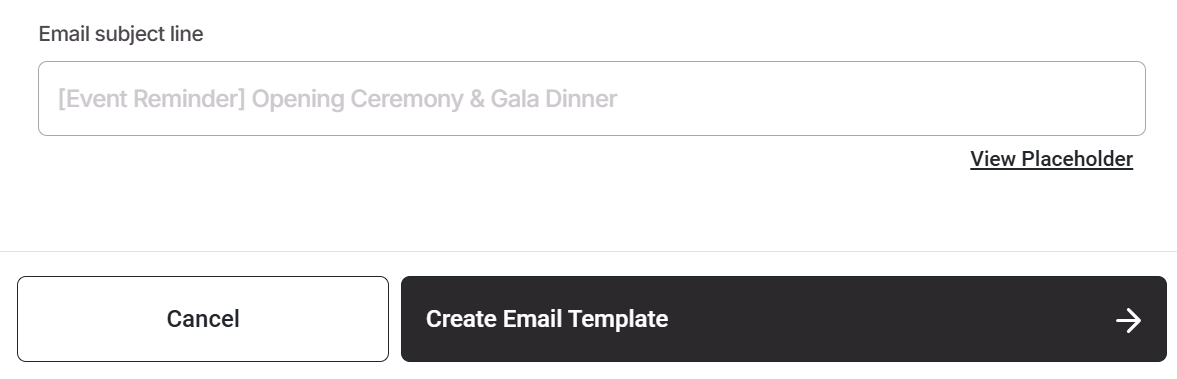
- Write your Email subject line. Subject lines also support place holders such as [Guest](First Name) for the guest's first name or [Event](Location) to dynamically add the event venue.
- Click Create Email Template.
Your new template is now saved and ready to be designed. If you selected Email Builder, the designer will open automatically so you can start designing right away.
Related Articles
- Copying email templates
- Using the Email designer
- Adding guest placeholders
- Adding QR Codes
- Testing emails and viewing as guest
- Activating, sending, and scheduling emails