
Setting up the printer 🖨️
Printer Setup Guide – Check-in Pax + Brother QL-820NWB (iPad)
This guide walks you through setting up your Brother QL-820NWB printer with the Check-in Pax App on an iPad. Follow each step in order to avoid common issues.
Equipment needed
Before you begin, make sure you have the following equipment:
| Item | Requirement |
|---|---|
iPad | iPad with iOS 18 or later (minimum requirement) |
Printer | Brother QL-820NWB or Brother QL-820NWBc |
Wi-Fi network | A network that supports 2.4 GHz (the Brother printer does not support 5 GHz) |
Recommended: Use a dedicated pocket Wi-Fi for each printer + iPad pair for the best performance. Hotel Wi-Fi often does not work reliably due to additional login pages (captive portals), 5 GHz-only networks, or connection timeouts. For a smooth event day, bring and control your own closed network.
Before you start – quick checklist
To avoid 90% of common issues, make sure:
- Brother printer is plugged into power and switched ON
- Paper roll is correctly loaded
- Your Wi-Fi network is ready to connect iPad and printer
- Check-in Pax App is installed and updated from the App Store
- You are logged in and see your event
1. Prepare the Brother printer
- Press the power button for 2 seconds to switch it on.
- Open the top cover, insert the paper roll, then pull the paper end manually forward and guide it through the paper slot until it emerges from the front of the printer.
- Close the cover, then press the scissors button once. The printer should feed and cut out a small blank label.
Watch the video below to see how to insert the paper roll and cut a blank label using the scissors button.
Important: If no label comes out, the paper may already be cut (pull the paper further out so it extends past the cutting blade) or the roll may be empty.
Troubleshooting
| Issue | Solution |
|---|---|
Printer not turning on | Check the power cable is firmly plugged in. |
Nothing happens when pressing scissors button | The printer may be off. Check the display and press the power button again for 2 seconds. |
Scissors / cut button seems inactive | Press the Return button a few times until you are back to the main display (not in any sub-menus). |
2. Connect printer to your Wi-Fi network
On the Brother printer
- Press the Menu button.
- Use the down arrow to find WLAN and press OK.
- Select WLAN (On/Off), choose On, and press OK.
- Navigate back to the WLAN menu and select Infra Manual Setting.
- The printer will search for networks. Use the arrow keys to select your network name (SSID) and press OK.
- Enter your Wi-Fi password using the arrow keys and OK button (passwords are case-sensitive).
- Tip: Use the Menu button to switch between letters, numbers, and symbols.
- Select OK to connect. The screen should display "Connected!" as in the image below:
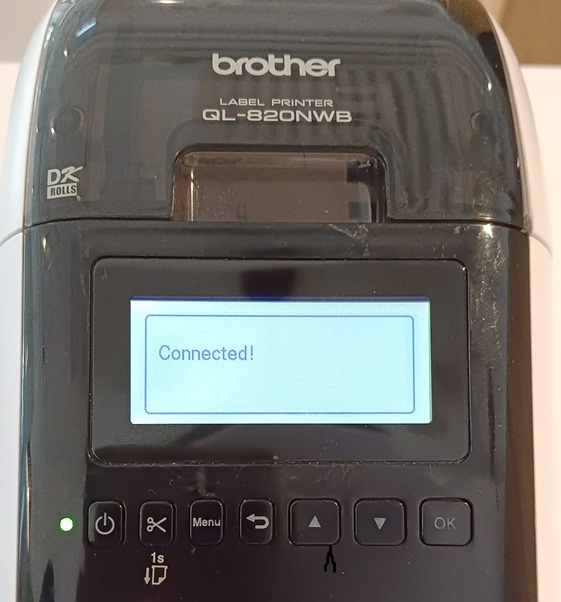
- Press Back or Menu to return to the main screen. The Wi-Fi icon should now appear in the top-right corner.
💡 Tip: A blinking Wi-Fi symbol means the printer is not connected. A solid (non-blinking) Wi-Fi symbol means the connection is successful.
The video below explains how to connect your Brother printer to your Wi-Fi using the printer's display.
Once you've finished connecting your printer by following the video above, the next step is to check your iPad's Wi-Fi settings.
On the iPad
- Go to Settings → Wi-Fi.
- Verify you are on the same network as the printer.
Important notes
- Wi-Fi only. Check-in Pax does not support Bluetooth connections. For the most reliable and stable printing experience, use Wi-Fi only.
- 2.4 GHz network required. The Brother QL-820NWB only supports 2.4 GHz wireless bands, not 5 GHz. Make sure your venue's Wi-Fi broadcasts a 2.4 GHz network.
Troubleshooting
| Issue | Solution |
|---|---|
Can't find your network name on the printer | Your Wi-Fi might be 5 GHz only. Check with venue IT for a 2.4 GHz network, or ensure your hotspot is set to 2.4 GHz. |
Wi-Fi is too far or crowded | Move the printer closer to the Wi-Fi source and search again. Try switching the printer off and on. |
Wrong password | Passwords are case-sensitive. Try re-entering slowly. |
Printer shows "Connected!" but iPad can't find it | Turn Wi-Fi off and on again on both devices, then reconnect. |
3. Open Check-in Pax and select your event
- Log into the Check-in Pax App (you should already be logged in from the checklist).
- Tap your event from the dashboard.
- You are now on the guest list overview.
- Make sure you have some sample guests on the list to test print later.
The Animation below shows you how to select the event, the guest list and opens a guest profile with a Print button.

Troubleshooting
| Issue | Solution |
|---|---|
Event not showing | Make sure you are logged in as the admin, or that your login has event access. |
No sample guests | Add test guests manually or contact the event organizer. |
No Print button | Switch on Name Badge in your event management under Manage Templates and set up the default template. |
4. Connect the app to your printer
- In the Check-in Pax App, tap the settings icon in the lower left corner (the hamburger icon ☰).
- Select Printer Setup → tap Please select a printer.
- Select the Brother QL-820NWB from the list.
- Press Print Settings.
- Select the correct paper/label size from the dropdown (keep all other settings unchanged).
- Press Save and confirm the selection in the dropdown.
- Press Close in the topm right and close all menus.
Your iPad is now connected to the printer.
This short video shows you the step to connect your iPad to a Brother printer in 20 seconds:

Troubleshooting
| Issue | Solution |
|---|---|
Brother printer not showing in the list | Go back to Step 2 and confirm both devices are on the same Wi-Fi network. |
Can't find your paper size | Check your label roll packaging or the side of the roll in your printer for the correct size (e.g., DieCut 62mm x 100mm, 62mm Continuous roll, DieCut 38mm x 90mm). |
5. Test print (do this before guests arrive)
- Find any test guest or a dummy entry on your guest list.
- Tap the name to open the profile.
- Tap Print badge.
One label should print immediately.
Watch the video below to see how to select a test guest, open their profile, and print a label.
The video above shows the final step – printing a test label. You are now ready for check-in.
Troubleshooting
| Issue | Solution |
|---|---|
Alert: "Badge template is missing or invalid" | Your default badge template has not been set up or properly saved. |
Alert: "Invalid PDF URL" | The paper in the printer does not match the template. Check that your badge dimension matches your paper roll. |
Alert: "setLabelSizeError The media in the printer is different from print setting" | You selected a paper size in Print Settings that does not match the actual paper in the printer or |
Alert: "Printer connection lost. Please reconnect" | The iPad is not connected to any printer. Repeat Step 4. |
Wrong dimension or very small label | You may be printing a portrait-sized label. Go back to Step 4 and in Print Settings select Portrait (default is Landscape). |
Useful links
| Resource | Link |
|---|---|
Brother Global Support | |
On-site Name Badge Printing Info Document |
Related Articles
- Configuring the printer in the Check-in App
- Printing badges in the Check-in App
- Creating badge templates
- Using the Badge designer